Eisenhower Matrix App: Sort Tasks by Quadrant
Published: November 16, 2026
💡 Is there an app for the Eisenhower Matrix?
Yes. Week Plan has the Eisenhower Matrix built in as the Quadrant view. You mark each task as important and/or urgent, and Week Plan places it in one of four quadrants: do it now, schedule it, delegate it, or don't do it.
Most to-do lists treat every task the same. A reply to a routine email sits next to the proposal that could change your quarter, and the email wins because it feels more pressing. The Eisenhower Matrix fixes that by asking two questions about each task: is it important, and is it urgent? Week Plan builds the matrix into your weekly planner as the Quadrant view, so sorting tasks this way is part of planning, not a separate exercise on a whiteboard.
How the Eisenhower Matrix works in Week Plan
The Quadrant view is one of the layouts of the week view. Instead of columns for days, it shows four boxes.
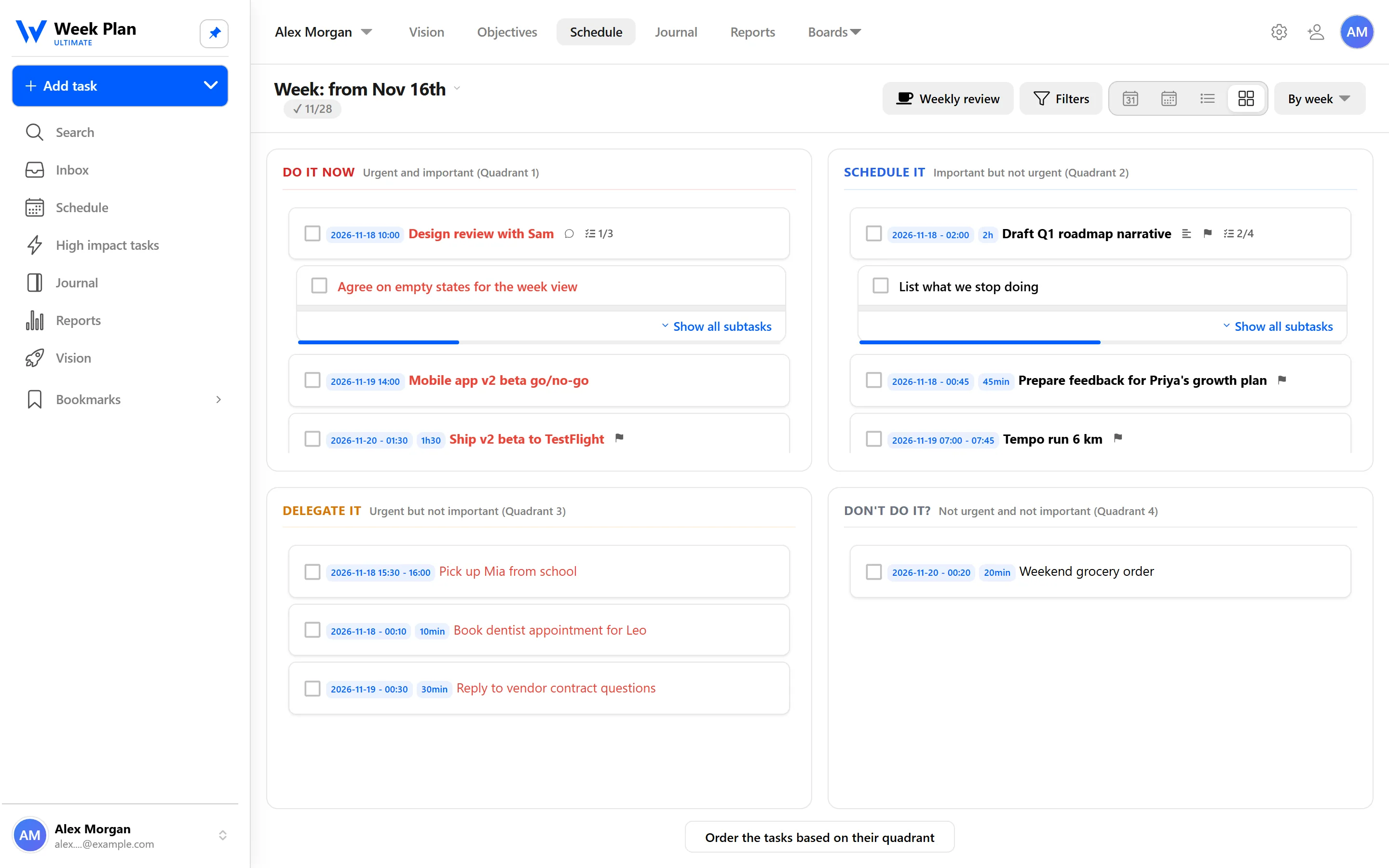
- Quadrant 1: Do it now. Important and urgent. Deadlines, real emergencies, problems that need you today.
- Quadrant 2: Schedule it. Important but not urgent. Planning, preparation, relationships, health, learning. This is where progress happens.
- Quadrant 3: Delegate it. Urgent but not important. Many interruptions, some meetings, requests that feel pressing but don't move your goals.
- Quadrant 4: Don't do it. Neither important nor urgent. Busywork and distractions.
You mark a task with two toggles, important and urgent. The combination puts the task in its quadrant. Change your mind later and flip a toggle; the task moves.
Week Plan can also order the tasks based on their quadrant, so the important work rises to the top instead of sitting under whatever you added last.
Because the quadrant is stored on each task, it also feeds your Reports. You can see which quadrant most of your tasks and time fall into, and a Quadrant 2 trend chart shows whether you are spending more or less time on important, non-urgent work over the weeks.
The 7 Habits behind it
Week Plan is built on Stephen Covey's The 7 Habits of Highly Effective People, and the Quadrant view is a direct expression of Habit 3: Put First Things First.
Covey popularized the time management matrix and made one point about it stick: effective people spend more of their time in Quadrant II. Quadrant I work has to be done, but if you only ever react to it, it keeps growing. Time spent in Quadrant II, on preparation, prevention and planning, is what shrinks Quadrant I over time. Quadrants III and IV are where the hours for Quadrant II usually come from.
That is why Week Plan doesn't treat the matrix as a one-off sorting tool. You use it while planning the week, it orders your days, and your reports show whether your Quadrant 2 share is growing.
For the theory and examples of each quadrant, read the academy's 4 quadrants of time management and the Eisenhower Matrix glossary entry.
How to get started
- Open your week and switch the layout to the Quadrant view.
- Go through your tasks and set the important and urgent toggles on each one.
- Look at Quadrant 2 and pick one or two tasks to schedule on specific days this week.
- Question Quadrants 3 and 4. Delegate what someone else can do and delete what doesn't need doing.
- Order the tasks based on their quadrant so the important work comes first.
Tips
- Be strict with "important". Important means it moves a goal or a role forward, not that someone asked loudly.
- Turn Quadrant 2 into High Impact Tasks. Your High Impact Tasks for the week usually live in Quadrant 2. Planning them first protects them.
- Check the trend, not one week. One busy week in Quadrant 1 is normal. A Quadrant 2 line that keeps falling is worth a closer look.
Who it is for
- People who feel busy but not productive. If your days are full and your goals still aren't moving, the Quadrant view shows where the time is going.
- Managers and team leads. Quadrant 3 is often full of things that could be delegated. Seeing them in one box makes that conversation easier.
- Anyone already using the matrix on paper. Week Plan keeps the same four boxes, but connects them to your days, your High Impact Tasks and your Reports, so the sorting carries into the rest of the week.