Google Calendar and Outlook in Your Planner
Published: November 16, 2026
💡 Can I see my Google Calendar or Outlook meetings in Week Plan?
Yes. Connect Google Calendar or Outlook, and your meetings appear in your week beside your tasks. You plan around the time you actually have, instead of guessing in two separate apps.
Your calendar knows where your meetings are. Your to-do list knows what you need to get done. Neither knows about the other, so you plan a full day of work on a day that turns out to have four meetings, and by Wednesday the plan is fiction.
Week Plan brings both into one view. Connect Google Calendar or Outlook, and your meetings appear in your week right beside your tasks. You see the real shape of each day before you commit to anything.
How calendar sync works in Week Plan
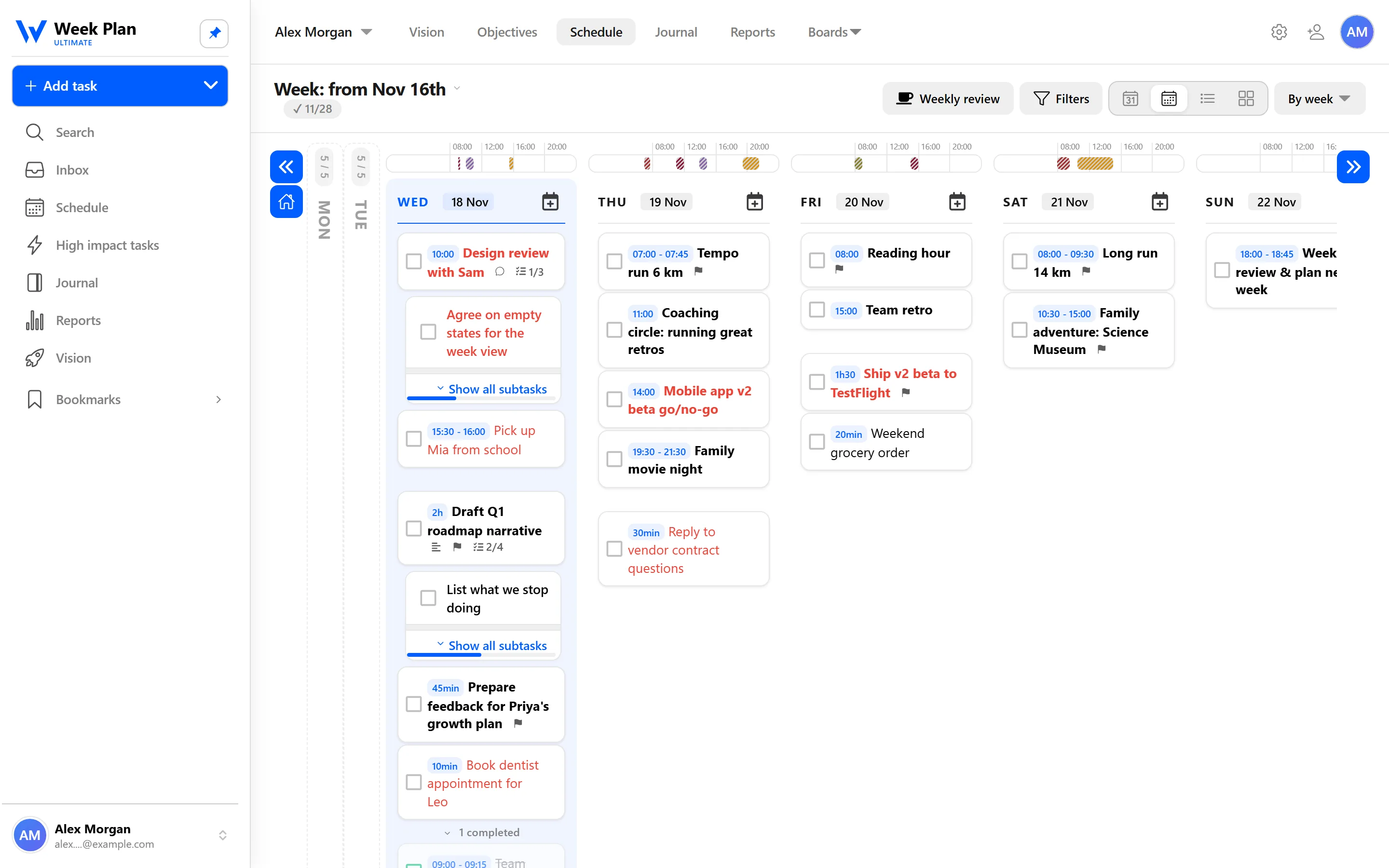
Connect your calendar. Link your Google Calendar or Outlook account to Week Plan. From then on, your meetings show up in your week beside your tasks.
Plan around real time. Switch to the hourly calendar layout when you want to see a day hour by hour. Add time estimates to your tasks, and the time total per day tells you whether the plan fits the gaps between meetings.
Move work, not meetings. If a day is packed with calls, drag tasks to a lighter day. Anything you don't finish rolls over to the next day automatically, so nothing falls off.
Email to task. Much of your work arrives by email. CC or forward an email to Week Plan and it becomes a task, ready to be planned. The email integration page lists the addresses and the format.
Zapier for everything else. If a tool you use is not connected directly, Zapier links Week Plan with more than 1000 apps.
If your team works in Slack, see the Slack integration for capturing tasks from messages.
The 7 Habits behind it
Week Plan is built on Stephen Covey's The 7 Habits of Highly Effective People, and seeing your calendar beside your tasks supports Habit 3: Put First Things First.
Covey's advice is to plan the week by putting your most important commitments into the schedule first, and let the rest fill in around them. That is only possible when you can see the schedule. With meetings in your week, you can spot the open blocks on Tuesday morning and give them to a High Impact Task, instead of discovering on Tuesday afternoon that the time is already gone.
It also makes the urgent visible for what it is. A week that is mostly meetings is a signal worth noticing when you plan, not after. You can decline one, shorten another, or move a task to next week while there is still time to choose, instead of discovering the overload on Wednesday evening.
How to get started
- Connect your Google Calendar or Outlook account in Week Plan.
- Open your week and look at where your meetings fall.
- Place your High Impact Tasks in the open time first, then fill in the rest.
- Switch to the hourly calendar layout for days that are tightly scheduled.
- Set up email to task, so the requests that arrive by email land in Week Plan too.
Tips
- Plan with meetings visible. Do your weekly planning after connecting your calendar, not before.
- Check the time total per day. If tasks plus meetings exceed your working day, move something now.
- Protect a block for Quadrant 2 work. An important task with no deadline needs a real slot, or meetings will take it.
- Forward, don't copy. When an email needs action, forward it to Week Plan instead of retyping it.
Who it is for
Calendar sync matters most for people whose days are shaped by meetings: managers, team leads, consultants, coaches, and anyone who works across many clients. If your calendar fills up before you have planned your week, seeing meetings next to tasks is the difference between a plan that holds and one you abandon by Tuesday.
It is just as helpful in personal life. A parent who keeps family appointments in Google Calendar can see them in the same week as work tasks and roles like Health & Fitness, and plan a week that is balanced, not only busy. Week Plan runs on the web and on iOS and Android, with your week in sync across devices.