AI Task Planner That Helps You Start
Published: November 16, 2026
💡 How does AI help with planning in Week Plan?
Week Plan has four AI helpers: Break Down Tasks with AI suggests subtasks, AI Refine rewrites a task title as you add it, Add tasks with AI turns pasted text into suggested tasks, and AI Excuse Killer suggests small first steps for a task you keep postponing.
Some tasks sit on your list for weeks. Not because they are unimportant, but because they are vague ("sort out the website"), huge ("plan the offsite"), or simply uncomfortable to begin. Every time you see them, you move them to tomorrow. And when you come out of a meeting with a page of notes, turning it into a clean task list is one more chore.
Week Plan includes a small set of AI helpers aimed at exactly these moments. They don't take over your planning. They help you turn fuzzy intentions into clear, startable tasks, so the work you chose actually moves.
How AI works in Week Plan
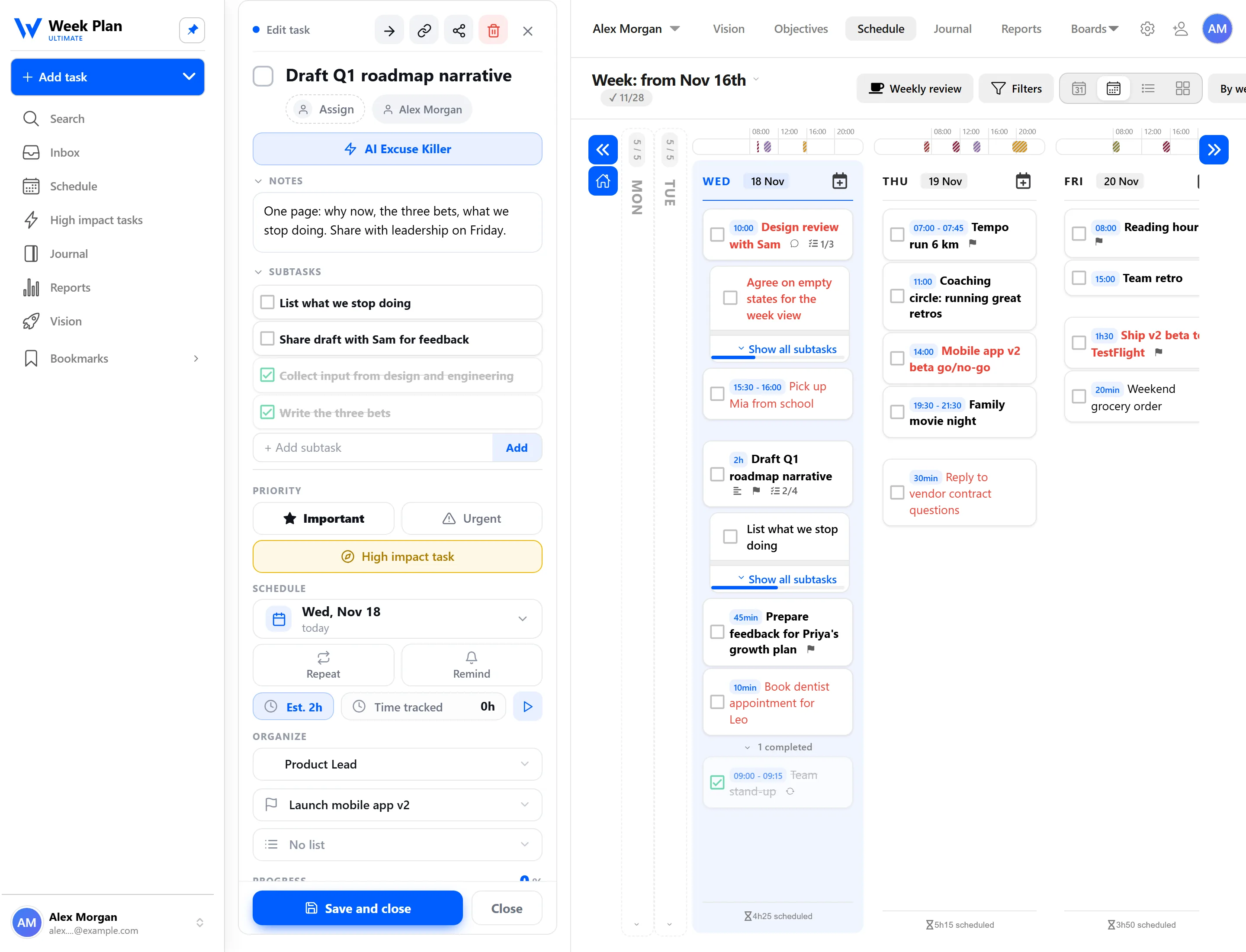
There are four helpers, each tied to a specific step in your planning.
Break Down Tasks with AI. Open a big task and let AI suggest subtasks. "Prepare quarterly presentation" becomes a list of concrete steps. Keep the ones that make sense, edit the rest, and you have a task you can spread across the week.
AI Refine. When you add a task, AI Refine rewrites the title to make it clearer. A note like "website thing" turns into something you will understand on Thursday without remembering the context.
Add tasks with AI. Paste a block of text, such as meeting notes, a message or a brain dump, and Week Plan suggests tasks from it. You review the suggestions and add the ones you want.
AI Excuse Killer. This one is for the task you keep postponing. Instead of moving it again, ask AI Excuse Killer for help. It suggests small steps you can start right now, and you can add them to the task as subtasks. The first step is often five minutes of work, and that is usually enough to get going.
Whatever the AI suggests becomes an ordinary Week Plan task or subtask. You can give it a role, link it to an objective, drag it onto a day, or turn it into one of your High Impact Tasks.
The 7 Habits behind it
Week Plan is built on Stephen Covey's The 7 Habits of Highly Effective People. The AI helpers lean on Habit 1: Be Proactive.
Being proactive means choosing your response instead of letting circumstances choose it for you. Postponing a task again and again is a quiet form of reacting: the task feels hard, so the feeling decides. AI Excuse Killer and Break Down Tasks with AI give you a different option in that moment. You take the next small action you control, rather than waiting until you feel ready.
They also support Habit 3: Put First Things First. Important tasks are often the vaguest ones, because nobody else defines them for you. Breaking them into clear steps makes it much easier to schedule them before the urgent work fills the week.
How to get started
- Pick a task you have been avoiding or one that feels too big.
- Open it and use Break Down Tasks with AI to get suggested subtasks. Keep the useful ones.
- If a task keeps getting moved, try AI Excuse Killer and add the smallest step as a subtask.
- After your next meeting, paste your notes into Add tasks with AI and review the suggested tasks.
- Drag the first subtask onto today and start it.
Tips
- Edit the suggestions. AI gives you a draft. Your knowledge of the work makes it right.
- Make the first step tiny. If a suggested step still feels heavy, break it down again.
- Use it on your High Impact Tasks. These matter most and are often the hardest to begin.
- Check "Keeps getting moved" in Reports. It is a ready-made list of tasks that could use AI Excuse Killer.
Who it is for
The AI helpers are useful for anyone whose list holds a few stubborn tasks: people who plan well but stall at the start, managers who leave meetings with pages of notes, and anyone who writes quick, cryptic task titles and has to decode them later. If your tasks are already small and clear, you may rarely need them, and that is fine. They are there for the moments when a task is in the way of itself.