Rolling Over Uncompleted Tasks
Published: January 2, 2026
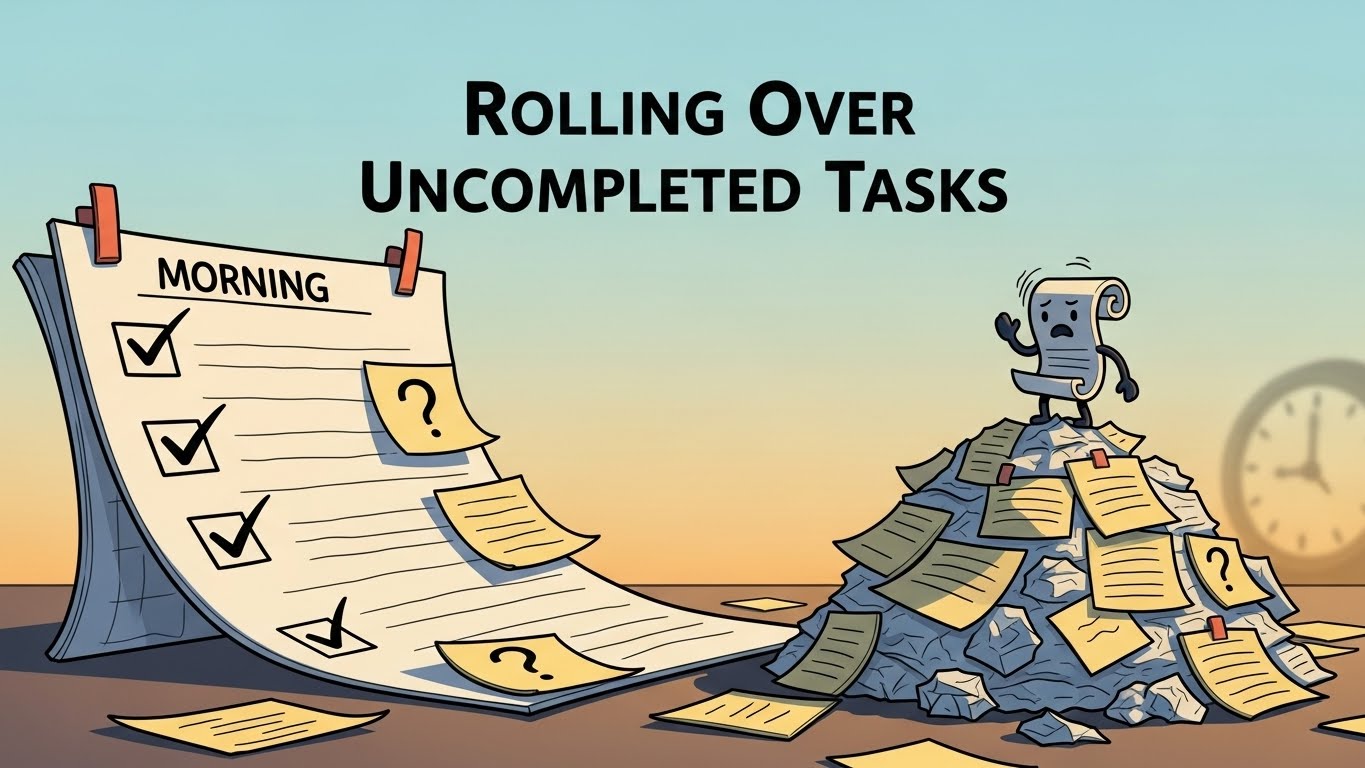
Week Plan supports automatic rollover of unfinished tasks to help teams keep their plans realistic and up to date. Instead of manually copying tasks from one day to another, rollover ensures that incomplete work remains visible and actionable in the next planning period.
Rollover behavior is controlled at the team level and can be configured in Team Settings using two dedicated checkboxes. These options allow teams to decide how flexible their planning should be and how time-specific tasks are handled.
Rollover Settings
Automatically roll over uncompleted tasks
When this option is enabled:
- Tasks that are not marked as completed by the end of the day are automatically moved to the next day
- All task properties are preserved
- Tasks appear in the new week without any manual action
This setting is designed for ongoing or outcome-based work where the exact completion date may shift. It reduces weekly planning overhead and ensures that unfinished tasks are not forgotten or lost.
When this option is disabled:
- Uncompleted tasks remain in their original day
- Teams must manually reschedule or recreate tasks if they should continue
Also automatically roll over tasks with start time
This option controls how time-blocked tasks are treated during rollover.
When enabled:
- Tasks that have a specific start time are included in automatic rollover
- Time-based tasks move forward together with other uncompleted tasks
- This supports flexible scheduling when time estimates are approximate
When disabled:
- Only tasks without a start time are rolled over automatically
- Tasks with a defined start time stay in their original day
- Time-specific tasks must be manually rescheduled if they are still relevant
This setting is useful for teams and individuals that treat calendar-based planning as fixed commitments rather than flexible intentions.
How Rollover Fits Into Weekly Planning
Automatic rollover helps keep weekly plans aligned with reality:
- Unfinished tasks stay visible without being marked as overdue
- Teams start each new week with an accurate view of pending work
- Repeated rollovers highlight tasks that may need reprioritization or breakdown
- Planning remains lightweight and low-maintenance
Rollover does not force tasks to be completed or rescheduled — it simply ensures continuity.
Important Notes
- Rollover settings apply team-wide and affect all team members
- Rollover happens automatically at the end of the day
- Completed tasks are never rolled over
- Settings can be adjusted at any time to match the team’s planning style
By configuring rollover appropriately, teams can balance structure with flexibility while keeping their plans clean and trustworthy.