
Please note that feature would be released soon in Q1 2026
Turn conversations into action without leaving Slack.
Stop losing tasks in long Slack threads. With the Week Plan Slack app, you can instantly turn messages into structured tasks and have them show up exactly where you plan your week.
How It Works
- Write or select a message in Slack
- Use the Week Plan Slack command
- The task is instantly added to your Week Plan
No tab switching. No copy-pasting. No “I’ll do it later”.
Why Teams Love It
💬 Capture tasks where they happen
Most tasks are created during conversations. Now you can capture them at the moment of decision, not hours later.
🧠 Reduce cognitive load
You don’t have to remember anything. Once it’s in Week Plan, it’s scheduled, visible, and actionable.
⚡ Faster execution
Turning a message into a task takes seconds, not minutes.
📅 Always planned, never forgotten
Tasks added from Slack land directly in your planning system — ready for weekly prioritization.
What You Can Do with the Slack App
- Add a task to Week Plan from any Slack channel or DM
- Use the message text as the task description
- Assign it to the right day or week
- Keep ownership clear — no more “who was supposed to do this?”
Built for Focused Planning
Slack is great for communication.
Week Plan is built for execution.
The Slack app bridges the gap:
- Slack → capture
- Week Plan → plan & execute
No clutter. No task overload. Just intentional work.
Perfect For
- Remote and async teams
- Product and engineering teams
- Founders juggling many conversations
- Anyone tired of losing tasks in Slack history
Get Started in Minutes
- Connect Week Plan to Slack
- Add your first task from a Slack message
- See it instantly in your weekly plan
How to enable Slack Integration for Week Plan
Access Slack Integration Settings Navigate to Account Settings → Slack Integration in your Week Plan account.
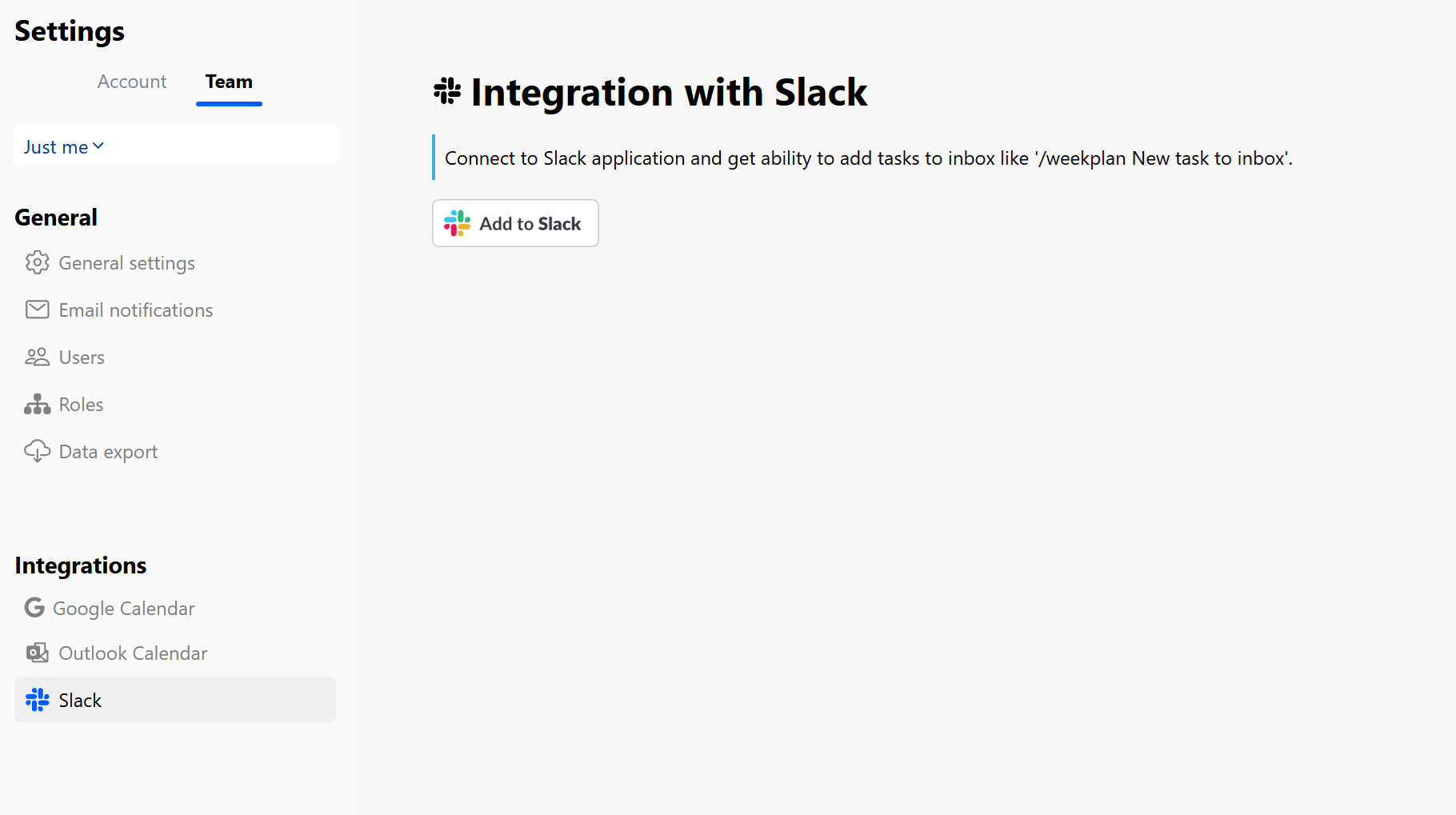
Connect Your Slack Workspace Click the Add to Slack button and follow the prompts to connect Week Plan with your Slack workspace.
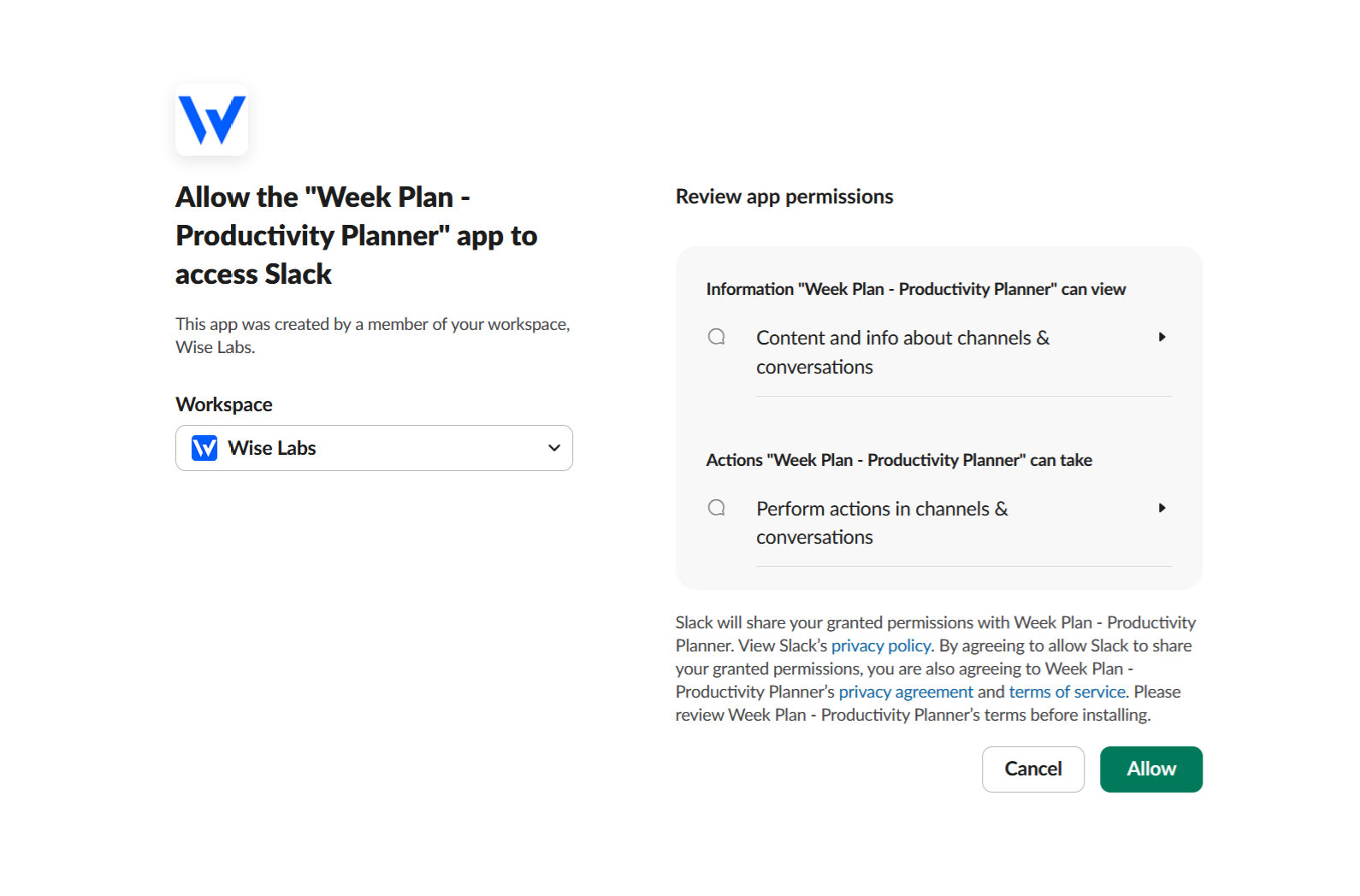
Confirmation and Redirect Once the connection is successful, you’ll be redirected back to Week Plan. You can immediately start adding tasks using the Slack slash command.

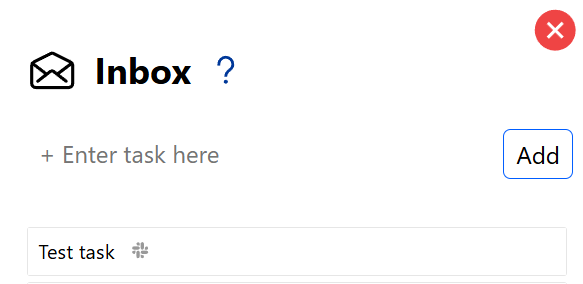
Adding Tasks from Slack Any task added via Slack will appear in your Week Plan inbox. Tasks imported from Slack are marked with a Slack icon so you can easily identify their source.
👉 Turn Slack messages into real progress
More Posts
How to Choose the Right Monthly Planner for Your Lifestyle
Using a digital monthly planner is a terrific way to remain on top of your schedule and organized in this digital age. Choosing the best planner with so many options can be challenging....
Monthly Financial Review Why It Matters
Getting a 100% accurate look at a business’s finances is really hard because of many reasons. These include the complicated nature of financial dealings and the chance of mistakes by people. Also, the...
13 Time Management Tips for Middle School Students
Managing time is key for middle school students. They have school, hobbies, homework, and chores. Learning time management helps them do well in today’s world. They learn to choose what’s most important, stay organized, and...
Unveiling Top Daily Schedule Maker Apps for Ultimate Productivity
In today’s bustling digital age, the quest for the perfect daily schedule planner app is more pressing than ever. Everyone, from professionals juggling multiple projects to individuals seeking a more organized life, understands...